How Do You Tweak Settings for Better PC Gaming Performance?
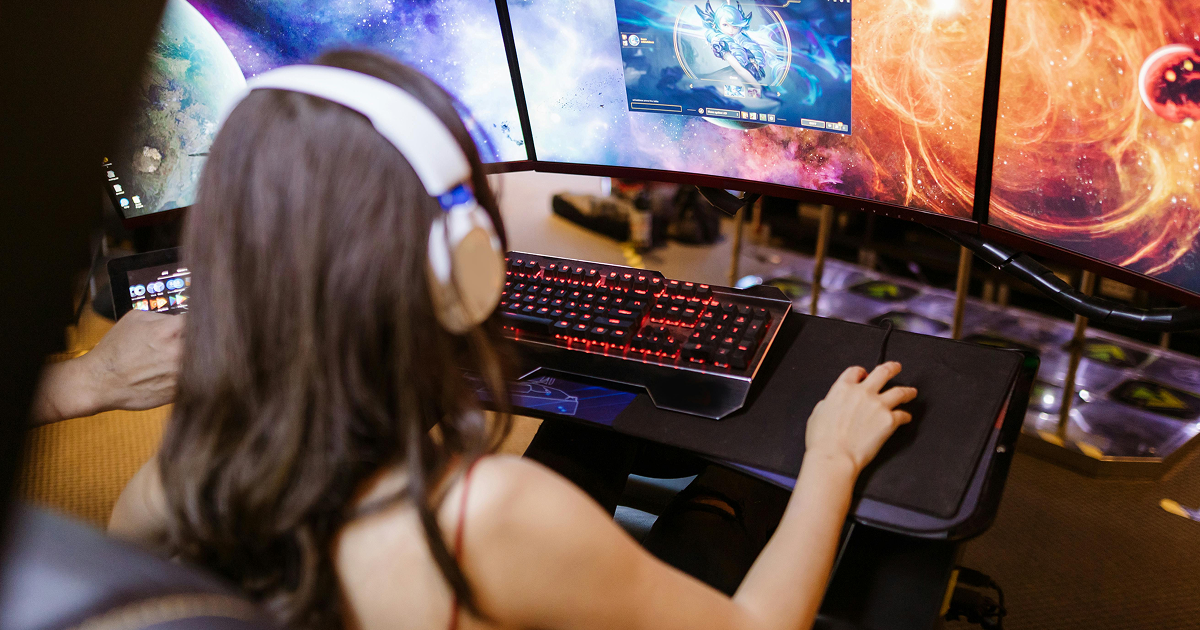
What’s better than gaming? Gaming without a glitch. Imagine this: you’re about the land the perfect headshot when the screen freezes and you miss the shot. Frustrating, right? Well, there’s hope! With a few tweaks, you can be playing like a professional. Let’s get started!
Takeaways:
- Game Mode is a must for any serious gamer.
- Don’t forget the mouse! It’s your trusty sidekick.
- Higher refresh rates = smoother gameplay (so don’t leave that on 60Hz).
- High Performance mode is your friend when it’s time to game.
Keep drivers updated for peak performance, especially with PC gaming news and PC game patches coming out regularly.
1. Game Mode: Windows’ Secret Weapon
Game Mode must be enabled! This is like telling Windows “I’m going to play Best PC Games 2020, so stop your weird background stuff!”. To enable it, navigate to Settings, click Gaming, then toggle on Game Mode. Windows will prioritize resources to your game. This reduces lag, and lets you concentrate on what’s important: winning.
2. The Mighty Mouse
It’s happened to all of us: you’re trying to click accurately, but your mouse is gliding around like it’s on an ice sheet. In the mouse settings, turn off “Enhance Pointer Precision”. This is like giving your mouse an espresso shot, which makes it more precise and responsive. You’ll no longer have to worry about erratic movements when you are trying to align the perfect shot.
3. Refresh Rate Magic
Do you know the feeling when your game appears amazing but the movements feel…off? Your monitor may be set to a refresh rate that is too low. For buttery smooth gaming, increase the refresh rate of your monitor from 60Hz to a higher value (such as 144Hz or even 240Hz). You’re upgrading your eyes from a tricycle into a sports car.
4. Power Settings: Unleash The Beast
In “Power Saver”, PCs love to nap, but now is not the time. Switch to High Performance Mode. Your PC will be able to provide you with all of the power it can, so don’t worry. This can be adjusted in the power settings of the Control Panel. You’ll be able to make your PC happy.
5. Graphics Settings: Make Trade-offs
You might want to max out all settings when playing the Top PC Games of All Time for stunning graphics. Let’s face it: if your PC is struggling, reduce some settings. You can tone down shadows, textures and effects without losing the visual appeal. Wearing sunglasses at night is like wearing cool shades, but they don’t do much.
6. Driver Updates: Don’t Skip This Step
It’s time for you to update your drivers. Update your GPU drivers and you can see the difference. Visit the website of your GPU manufacturer, download the latest versions, and voila! You’ll notice that your PC runs more smoothly and you may even see a performance boost for the latest PC games you’ve been eyeing.
7. Overclocking: the Adrenaline Shot
Feeling brave? You can boost your gaming system’s performance by overclocking either your CPU or your GPU. You can think of it as giving your PC some energy. Monitor the temperature of your computer. No one wants a hot-headed PC.
FAQ
-
Game Mode. It’s a simple toggle but works wonders.